
Ask Claude Code to build a Mac app and the code shows up fast. But whether the buttons on the settings screen actually work is something a person still has to find out by opening the app and clicking through it. agent-desktop is a free open-source CLI that Vercel Labs released on October 31, 2026. It lets coding agents such as Claude Code and Codex read and operate desktop apps on Mac, Windows, and Linux through the operating system’s accessibility tree. It’s licensed under Apache-2.0, and it’s a tool for handing that button-clicking over to the agent.
In the launch post, Vercel’s Chris Tate described it as “agent-browser, for your whole computer.” In other words, what used to happen inside a browser now extends to the entire machine. As of November 2, 2026, it has 6,833 GitHub stars.
It reads structure, not the screen
There are broadly two ways an AI can use a computer. One is to take a screenshot and guess where to click from coordinates. The other is to read the structure that an app reports to the operating system. agent-desktop does the latter. The accessibility tree is the list an app publishes for assistive technology such as screen readers: “this window has these buttons and input fields.”
One command returns that list from the app as JSON and attaches a tag called a ref to every element that can be clicked. The agent picks a tag, clicks it, then reads the list again to check the result. It does no pixel matching.
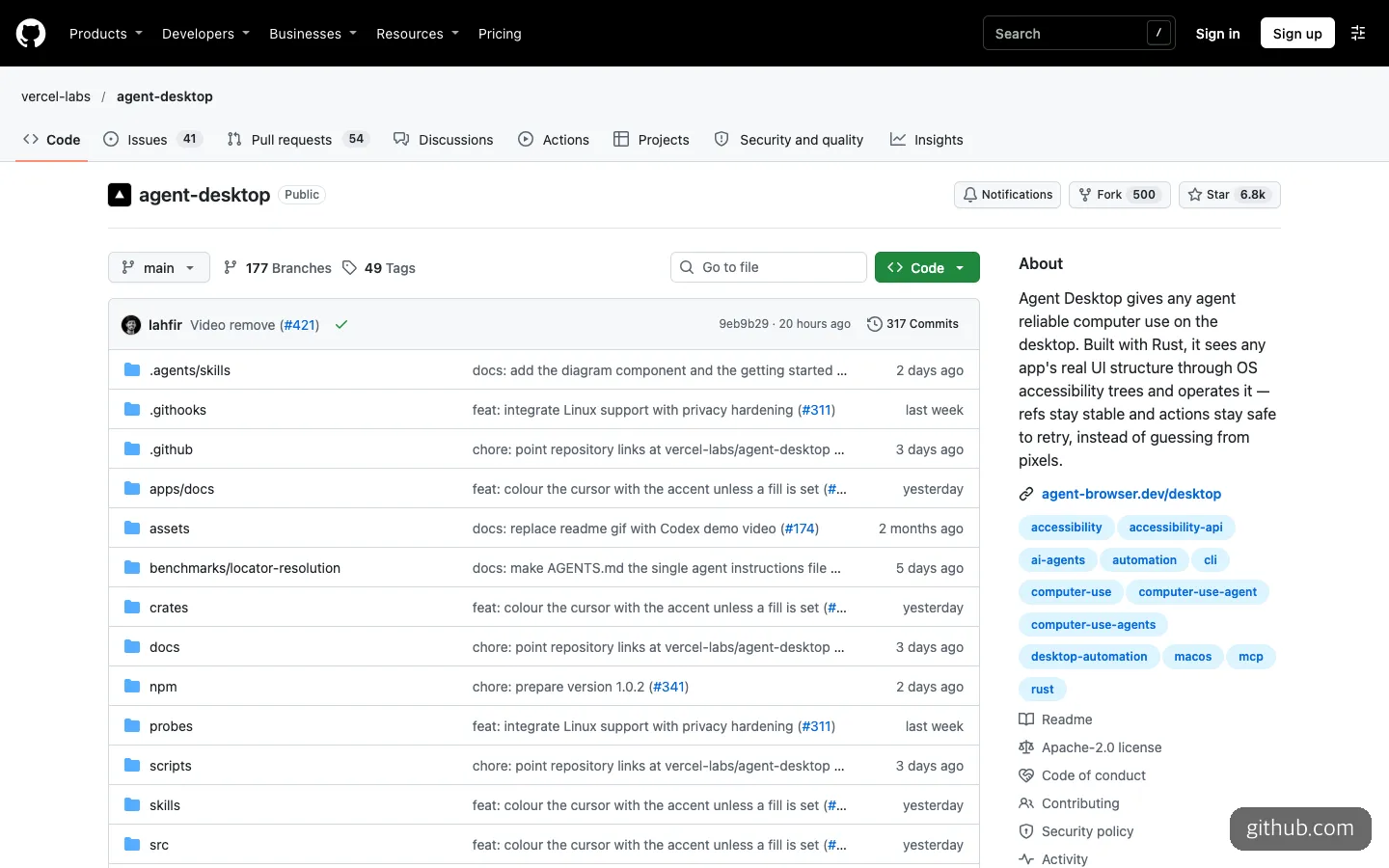
The repository’s front page. The description leads with the point that it doesn’t guess from pixels.
What matters is that there’s no AI model inside the tool. The official docs describe it as “a tool that agents call, not an agent.” So you can attach it to whichever agent you already use, whether Claude Code or Codex, and it isn’t tied to any particular model. The developer Lahfir started the project in February 2026, and it was later moved under Vercel Labs. Version 1.0, which added Linux support, came out on October 28, and the latest release, 1.0.2, came out on October 30.
It runs in headless mode by default, so while the agent works the app, your mouse pointer doesn’t move and your window focus isn’t stolen. You do other things while the agent handles the app in the background. If you need real mouse and keyboard input, you have to pass the --headed flag separately.
When it fits, and when it doesn’t
The good fits narrow down to three situations.
Checking a desktop app you built yourself. This is where it’s most useful. If you vibe-coded a Mac app or an Electron app, the agent can fix the code, open the app, click the buttons, and read back the changed values, all on its own. You only look at the result.
Repeating the same task in a desktop app that has no API. This covers jobs like changing a few settings every time, or going through the same menus over and over. One caveat, according to reviewer Flavio Copes: the set-value command only changes the value of the control on screen, not the saved file. You have to tell the agent to save as well.
Running something in the background while you work. Thanks to the headless default, you don’t need to get out of the way of the screen. Chris Tate’s post also highlighted that each agent uses its own cursor, so several can work at once.
The poor fits are just as clear. Web page automation isn’t covered at all. The official docs say to leave that to the sister tool, agent-browser. It also can’t see screens that don’t expose an accessibility tree. Apps that draw everything directly on a canvas, such as games and drawing tools, are typical examples. Since it doesn’t look at pixels, any screen that doesn’t describe its structure is effectively invisible.

The official docs open by saying there’s no model inside and that web pages aren’t covered.
Chromium and Electron apps are a middle ground. agent-desktop reads the native parts of the app, such as windows and menus, and the docs say to open the DevTools port and pair it with agent-browser for the web content inside.
Getting started with agent-desktop, and what to leave to the AI
You’ll need a Node.js package manager (any of npm, Bun, Yarn, or pnpm) and operating system permissions. No GPU or API key is required. The install commands in the README are just these two lines.
npm install -g agent-desktop
agent-desktop version
If you installed without -g, call it with npx agent-desktop. As of November 2, 2026, the official Homebrew and Scoop packages are still under review.
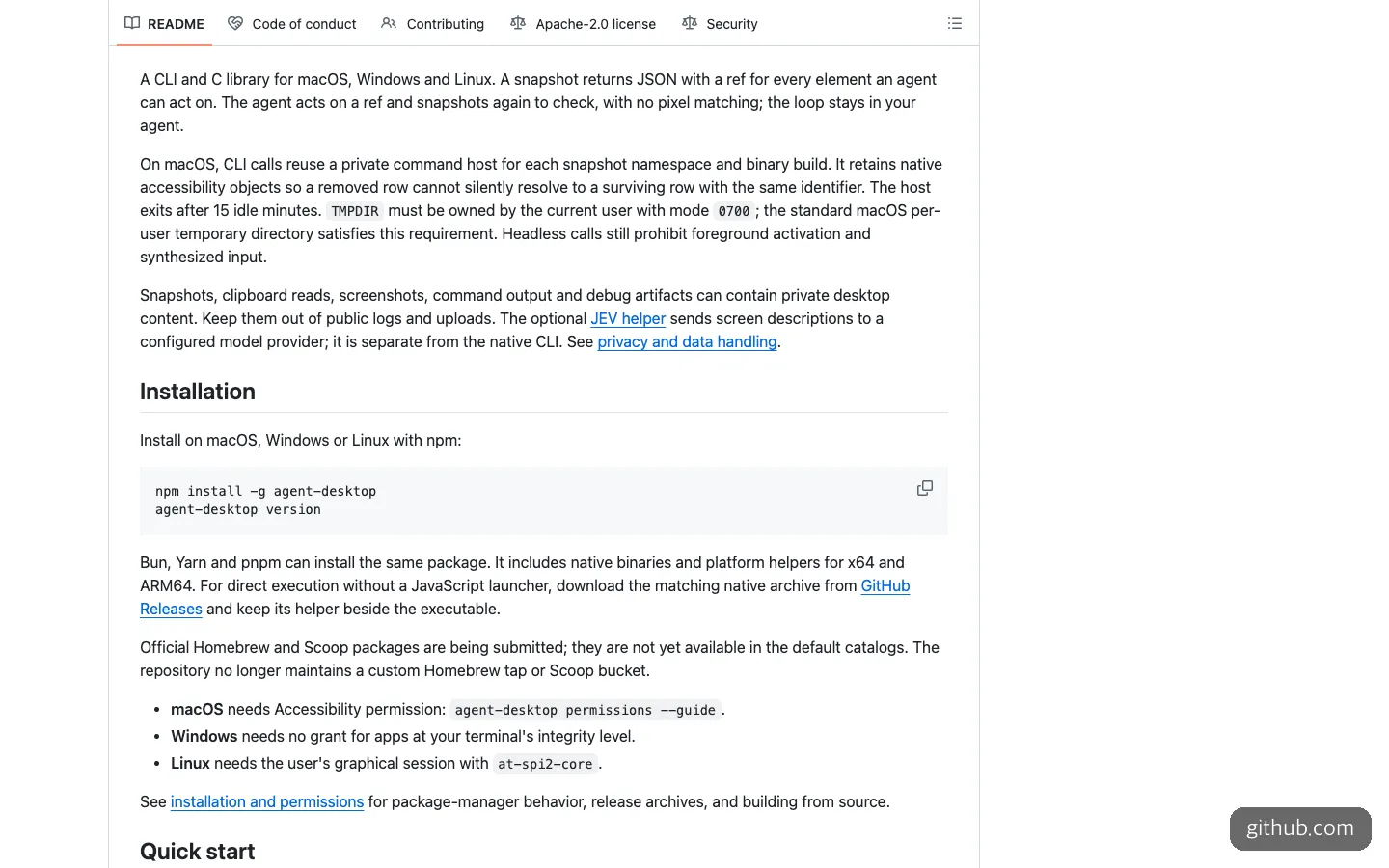
The README’s install section. Two npm lines and the per-OS permission notes are all there is.
Permissions differ by operating system. On a Mac, you need the Accessibility permission in System Settings, and you also need to grant Screen Recording if you want to use screenshots. Run agent-desktop permissions --guide and it walks you through it. On Windows, there’s nothing extra to allow as long as the app runs at the same level as your terminal. On Linux, you need a graphical session and at-spi2-core.
There are three ways to teach an agent about this tool: install it as a skill, have the agent load the built-in guide document, or add one line to the project’s AGENTS.md. Installing the skill takes the least effort.
npx skills add https://github.com/vercel-labs/agent-desktop --skill agent-desktopAfter that, the requests you make to Claude Code or Codex don’t need to be long. The first is a check request: ask it to launch the app you built with agent-desktop, confirm with a snapshot that the buttons on the settings screen respond, and report only the ones that don’t. The second is for building a habit. Have it add the one-line English sentence the README recommends (telling the agent to use agent-desktop to view and operate desktop apps) to AGENTS.md, then add that from now on it should verify results with agent-desktop whenever it changes the UI.
You don’t need to memorize the detailed command options. Every docs page has a “Copy for LLM” button, so you can copy a whole page and paste it to the agent.
How it differs from similar tools
There are already a few options for letting an AI operate a computer. Here they are side by side: the same company’s browser tool, an open-source Mac-only tool, and the feature built into Codex.
| agent-desktop | agent-browser | Peekaboo | Codex computer use | |
|---|---|---|---|---|
| What it handles | Desktop apps | Web pages | Mac apps | Mac apps |
| How it reads | Accessibility tree only | Same ref approach (in the browser) | Screenshots + accessibility info | Sees and clicks with its own cursor |
| OS | Mac, Windows, Linux | Browser | macOS 15 or later | Mac |
| Form | CLI, C library | CLI | CLI, menu bar app, MCP server | Feature inside the Codex product |
| License | Apache-2.0 | Apache-2.0 | MIT | Commercial product |
There are two points where the choice splits. One is the operating system. If you need to handle Windows or Linux apps, agent-desktop is the only choice in this table. The other is which agent you use. If you only use Codex, the built-in computer use that arrived on the Mac in April 2026 may be enough. If you also use other agents such as Claude Code, agent-desktop, which isn’t tied to a model, is less hassle.
Peekaboo also uses screenshots, so it can see the screen even in Mac apps with a thin accessibility tree. The trade-off is that the Screen Recording permission comes with it by default.
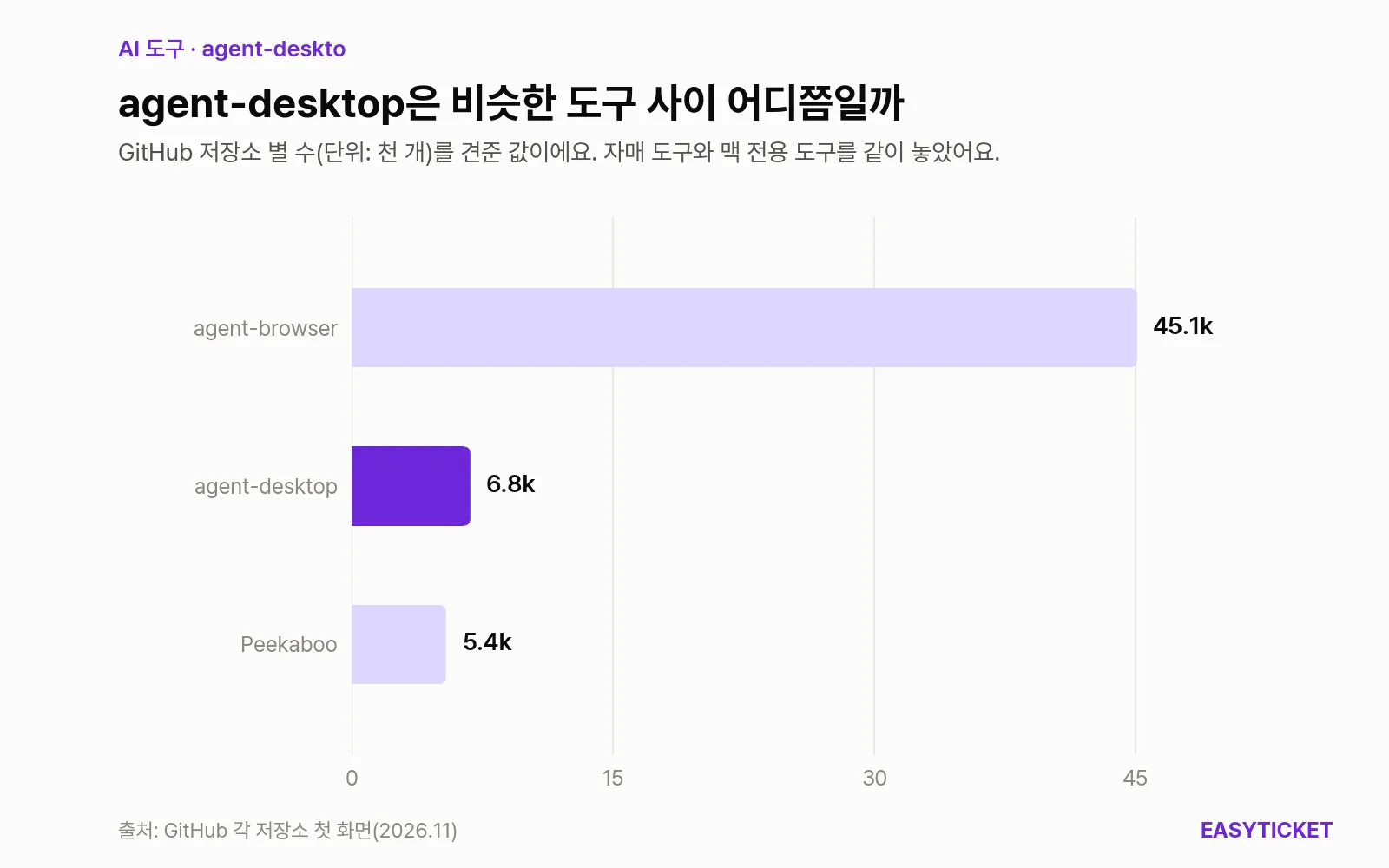
GitHub stars compared with the sister tool agent-browser and the Mac-only Peekaboo.
In terms of attention, agent-desktop passed Peekaboo within days of its release, but it’s about one-sixth of agent-browser, which launched the same approach first. That means demand on the browser side is still far larger, and if you only do web work, there’s no reason to move over to a desktop tool.
Still 1.0: things to be careful about
What stands out most in the docs is actually their candor. They state what the tool can’t do and the privacy warnings close to the top of the first page.
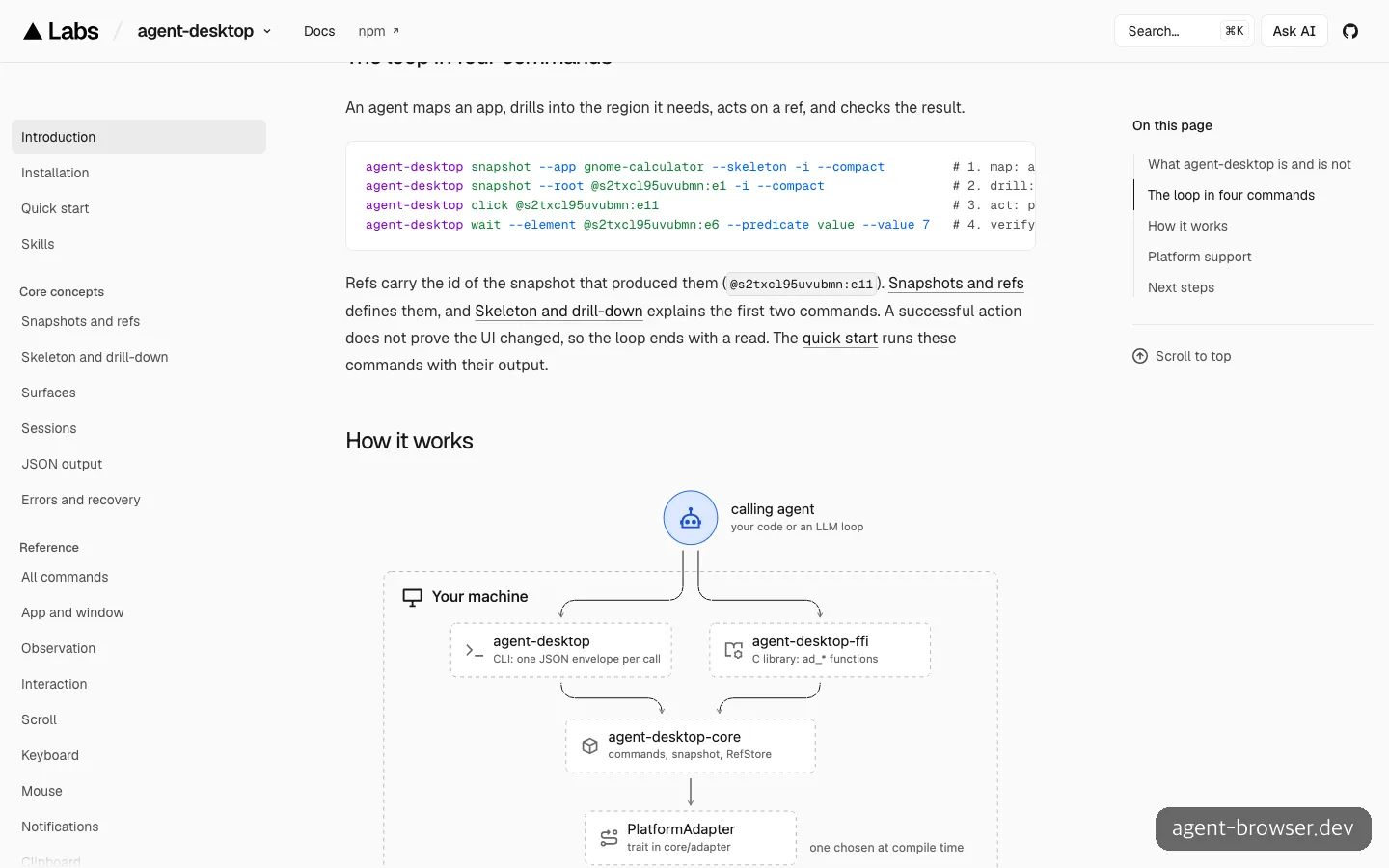
A four-command loop using the Calculator app as the example: map, expand, click, verify.
The docs’ example has four steps: press the number 7 in Calculator, then read back whether 7 appeared on the display. The docs say, “A successful click is not proof that the screen changed,” and insist on reading again at the end. When you hand work to an agent, the lesson is to ask it to go past “I clicked” and report “I verified.”
Privacy. Snapshots, the clipboard, screenshots, and command output can contain whatever was showing on your desktop, exactly as it was. The README warns against leaving this output in public logs or uploads. The optional JEV helper also sends screen descriptions to the model provider you configure. A reviewer’s decision to install it first in a test virtual machine (VM), rather than on an everyday computer with messaging and banking apps open, is a sensible one.
Windows security warnings. According to the same review, the Windows executable is unsigned, so SmartScreen or antivirus software may block it.
Unfinished commands. The README lists 60 commands, but four of them, key-down, key-up, mouse-down, and mouse-up, still refuse to run. Fine-grained input such as dragging while holding a key is hard to expect for now. In an app with several windows open, leaving out --window-id produces an error saying the target couldn’t be determined, and support for the Mac’s system UI is still at the planning stage.
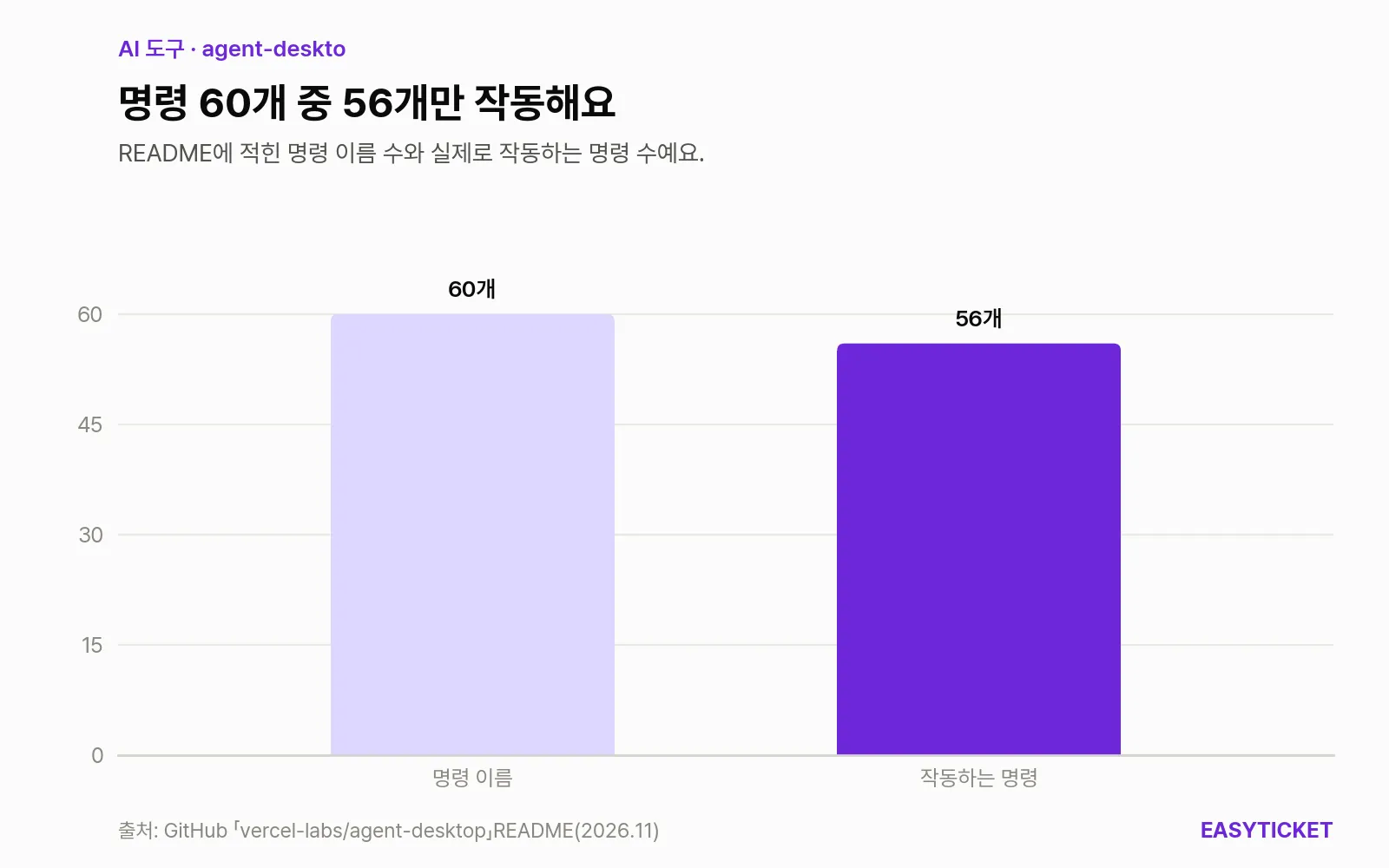
Of the 60 commands named in the README, 56 work right now.
Few verified reports. As of November 2, 2026, there are no independent tests comparing it with screenshot-based tools, and the one in-depth public review was tested only on Linux. Even the demo video that was in the README was removed in a recent commit, so there’s nothing to watch to see how well it actually clicks. Once again, this covers only what I could learn from reading the repository and docs. I didn’t install and run it.
Maintenance looks active. Commits continued the day after 1.0.2 came out, and the release list runs five pages back to 0.9 in September. But that pace also means command names and behavior may change often, so it’s safer to have the agent always load the latest guide document instead of relying on options it has memorized.
If you want an agent to check a desktop app you built all the way through, the lowest-risk first step right now is to attach it on a spare VM with one npm line and one skill.
Frequently asked questions
Is agent-desktop free?
Yes. It’s Apache-2.0 open source, so you can use and modify it for free. Since there’s no AI model inside, there’s no usage fee for the tool itself. The actual decisions are made by the Claude Code or Codex you attach it to, so their pricing applies as usual.
Do I connect it to Claude Code as an MCP server?
As of November 2, 2026, the official docs don’t describe an MCP server. You use one of three methods: install the skill, load the built-in guide document, or add one line to AGENTS.md. The MCP mode mentioned in the introduction from the earlier personal-repository days isn’t in the current docs.
Is it okay to grant the Accessibility permission on a Mac?
You need this permission to read and click other apps’ structure. That also means an agent running in the terminal can touch the apps on your screen, so if the computer holds a lot of personal data, it’s more comfortable to try it first on a test account or a virtual machine.
Sources 8
- GitHub - vercel-labs/agent-desktop (README)
- Releases · vercel-labs/agent-desktop
- agent-desktop 공식 문서 (agent-browser.dev/desktop)
- Chris Tate on X: Introducing agent-desktop
- Flavio Copes: A deep dive into agent-desktop
- GitHub - vercel-labs/agent-browser
- GitHub - openclaw/peekaboo
- Help Net Security: Codex can now operate between apps
AI helped with research and the first draft; the operator tried the subject firsthand, checked and edited this article before publishing. Let us know if you spot a mistake.